
Submitted by admin-boss on
Many libraries, including those at Royal Roads University, Simon Fraser University, Vancouver Island University and University of British Columbia, have added Summon to their websites. Here is a brief overview of Summon, based on notes from UBC’s Sheryl Adam. Her complete notes can be accessed here (PDF).
What is it?
Summon is a search engine that provides a single start point to find and access the majority of the library collections. It is a hosted service from Serials Solutions, with the Summon knowledge base and library content combined into one unified index.
What are its features?
- Single search
- Provides a Google-like search experience. Allows for Advanced Searching as well.
- Relevant results
- Delivers search results in a relevancy-ranked list so the most relevant results appear at the top of the list.
- Results refinement
- Navigate and narrow search result sets using multiple methods, such as filtering, faceting, and sorting.
- View and Export Citations
- Search results can be easily formatted and citations exported to bibliographic software like RefWorks or cut-and-paste into a Word document, printed or emailed.
**Continue reading for information on what is included and excluded from Summon, Summon search information and more**
What is included in and excluded from Summon?
Summon includes books, ebooks, scholarly journals and articles, newspaper articles, dissertations and theses, videos, maps, manuscripts, music scores, digitized items, and more.
To date, Summon has metadata for over 500 million items from 6,800+ publishers and 94,000+ journal and periodical titles —and the list is constantly growing. It’s possible to search items through Summon that individual libraries do not currently have, but the default is to search for items owned by the library.
Records from specialized catalogues, and items that have not been indexed yet are not included in Summon.
Summon may not include all journal articles available through the library. Summon indexes about 90% of the titles to which UBC subscribes, and about the same for SFU. See the figure below for a visual representation of what can be retrieved from Summon, using UBC as an example.
Searching With Summon
Summon offers basic and advanced searching options, the default being basic. The advanced search is available by clicking on a link that says “advanced search”, close to the “search” button of the basic search (either directly to the right, or below). The advanced search offers options such as searching within a publication and by ISBN, as well as by various limiters.
Begin the simple search by entering keywords. Use Boolean operators and/or phrase searching, if desired.
Phrases
Summon allows for phrase searching with the use of “ ”.
Boolean Operators
Summon accepts the following Boolean operations: OR, NOT and AND. The operators must be written in ALL CAPS. By default, all terms in a search are combined with the AND operator.
Wildcard
Searches within Summon can be performed using the wildcards ? and *.
The question mark (?) will match any one character and can be used to find “Olsen” or “Olson” by searching for “Ols?n”.
The asterisk (*) will match zero or more characters within a word or at the end of a word. A search for “Ch*ter” would match “Charter”, “Character”, and “Chapter”. When used at the end of a word, such as “Temp*”, it will match all suffixes “Temptation”, “Temple” and “Temporary”.
NOTE: Wildcards cannot be used as the first character of a search.
Refining the Search
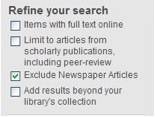
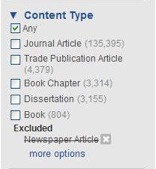
When using advanced search, or after either an advanced or basic search, there are several options for limiting the search. These include refining the search to items with full-text online, or to scholarly publications, and limiting by format, publication date, language, subject terms and library location.
Images below show two of the several panels found of the left side of the screen after a search, allowing users to refine the search.
[[{"type":"media","view_mode":"media_large","fid":"496","attributes":{"class":"media-image alignleft size-full wp-image-700","typeof":"foaf:Image","style":"","width":"155","height":"117","title":"SummonRefineSearch","alt":""}}]][[{"type":"media","view_mode":"media_large","fid":"497","attributes":{"class":"media-image aligncenter size-full wp-image-701","typeof":"foaf:Image","style":"","width":"156","height":"169","title":"SummonContentType","alt":""}}]]
View, Print, Save and Cite Results
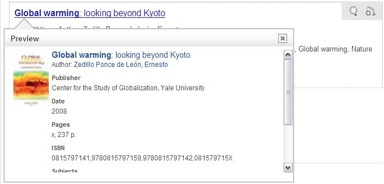
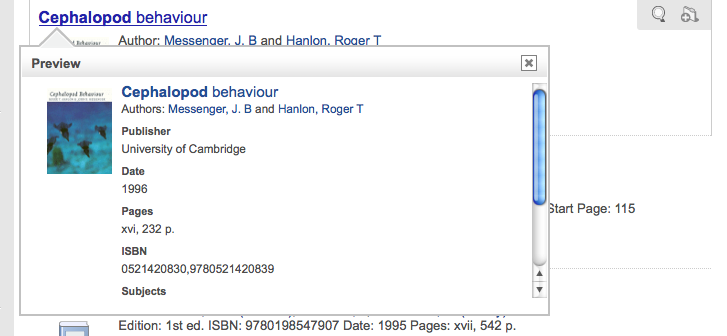
To view more information about an individual record, hover over the title of the record, or click the preview button [[{"type":"media","view_mode":"media_large","fid":"499","attributes":{"class":"media-image alignnone size-full wp-image-709","typeof":"foaf:Image","style":"","width":"18","height":"19","title":"SummonMagnifyingGlass","alt":""}}]], which appears on the right of the record when you mouse over it.
Save items by clicking the folder button [[{"type":"media","view_mode":"media_large","fid":"500","attributes":{"class":"media-image alignnone size-full wp-image-710","typeof":"foaf:Image","style":"","width":"18","height":"19","title":"SummonFolder","alt":""}}]], beside the preview button.
Access saved items by clicking at the link at the bottom of the results list. [[{"type":"media","view_mode":"media_large","fid":"504","attributes":{"class":"media-image alignnone size-full wp-image-722","typeof":"foaf:Image","style":"","width":"134","height":"21","title":"SummonSavedItems","alt":""}}]]
From the Saved Items, it’s possible to format or print the list of items, view citations or export the citations into citations software.
Searches Unavailable in Summon
Call number searching: because Summon only searches the first subdivision in the 090 field, you can't search by complete call number. You can search by partial call number, JZ6293 for example.
Subject searching: Summon can't browse or search by the Standardized Subject Headings libraries use in the Catalogue.
- Reece






- Log in to post comments